Create a webhook
A webhook is a user-defined HTTP callback that is triggered by an event in Adobe Commerce. When the event occurs, the webhook sends an HTTP request to a specified URL with a payload containing information about the event. An event that can trigger a webhook is also known as a webhook method.
Before you create a webhook, you must resolve the following questions:
-
What information does the Commerce event contain?
-
What data structure does the remote server require for incoming requests?
With this knowledge, you can create a webhook, which defines the following sets of information:
-
The basic definition of the webhook. This includes the webhook name, the event (webhook method) to listen for, the URL to send the HTTP POST request to, timeout settings, fallback error messages, and more.
-
Authentication information. In Adobe Commerce as a Cloud Service (SaaS), you can configure OAuth credentials from the Admin. In Platform as a Service (PaaS) and on-premises environments, you define authentication information in auth headers using
envandconfigvariables in the hook headers section or as part as a custom module. -
The definition of one or more hooks. Specify which fields of a webhook method to include in the payload and transform the payload into a format that is compatible with the external system.
-
The definition of one or more request headers. You can define the headers to include in the request, such as authorization tokens and other connection parameters.
-
Optional rules that trigger only when certain conditions are met, such as when a string matches a specific value.
SaaS Only In Adobe Commerce as a Cloud Service, you can create a webhook subscription in the Admin or by using a REST endpoint. (See Subscribe a webhook for details on using REST.) Adobe Commerce as a Cloud Service does not support all possible webhook methods. Open a support ticket to request additional webhook methods.
PaaS Only In Platform as a Service (PaaS) and on-premises environments, you must create an app/etc/webhooks.xml file or create a custom module that includes a <custom-module-root>/etc/webhooks.xml file.
Define webhook properties
Adobe Commerce as a Cloud Service customers can select System > Webhooks > Webhooks Subscriptions in the Admin to display the Webhooks grid page.
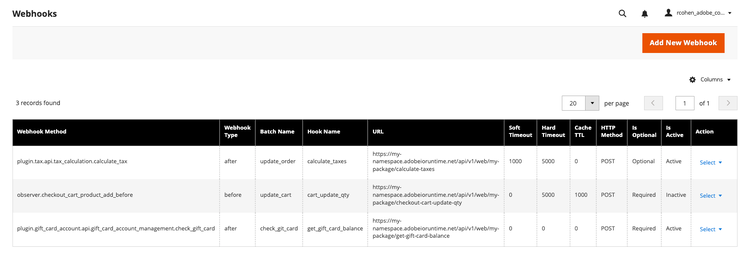
The rows of this grid show configuration settings for all registered hooks, both active and inactive.
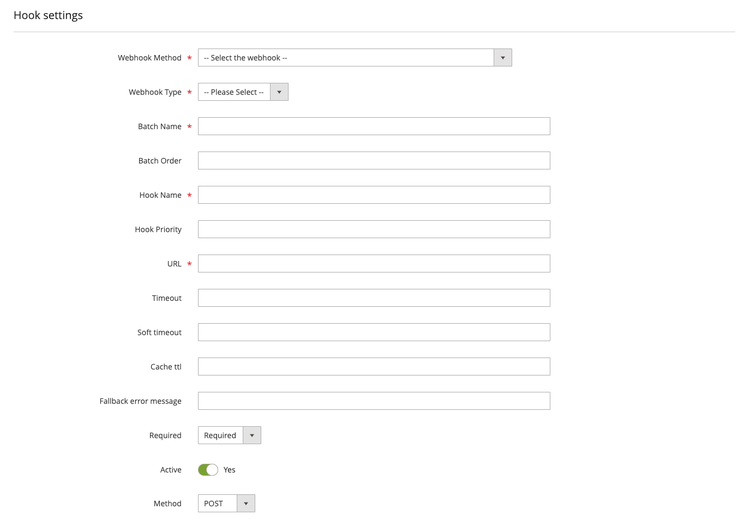
Click Add New Webhook from the grid page to display the form for creating a new hook.
On PaaS systems, you can create a webhooks.xml file in the etc directory of a custom module or in the Commerce app/etc/webhooks.xml file. The XML file has the following structure:
|__ config
    |__ method
        |__ hooks
            |__ batch
                |__ hook
                    |__ headers
                    |   |__ header
                    |__ fields
                    |   |__ field
                    |__ rules
                        |__ rule
The following table describes the properties of a webhook subscription. The Admin field column lists the field name in the Admin, and the XML attribute column describes the corresponding XML attribute in the webhooks.xml file.
method.name<event_type>.<webhook_name>, where event_type is either observer or plugin, and webhook_name matches a valid Commerce event name. In PaaS environments, use the bin/magento webhooks:list:all command to display a list of possible webhooks.method.typebefore or after the original action.batch.namebatch.orderhook.namehook.priorityhook.urlhook.timeouthook.softTimeouthook.ttl0, the response is not cached.hook.fallbackErrorMessageUnless you want to send the entire default payload, unedited, you must define at least one hook field. You will usually need to define authentication information. You can also optionally define rules that allow the webhook to run when the event payload contains configured values.
Webhooks configuration reference describes the XML schema in further detail.
Configure developer console OAuth
In PaaS environments, you can define OAuth credentials in the developerConsoleOauth element of a webhooks.xml file. See Best practices for webhook development for details.
The Developer Console OAuth configuration panel provides the ability to configure the details of an OAuth credential from the Adobe Developer Console. If configured and enabled, an IMS token will be generated using the credential details and passed in an Authorization header with the hook request.
See Setting up the OAuth Server-to-Server credential for information on creating an OAuth credential in the Adobe Developer Console.
Configure hook fields
The Hook Fields configuration panel or the fields element in the webhooks.xml file defines the payload of a webhook request and maps the fields of the webhook method to the payload structure required by the remote server.
field.nameproduct.sku.field.sourcequoteItem.sku. If not set, the Name value is used.field.removewebhooks.xml file, set field.remove to true to remove the field from the payload.field.converterwebhooks.xml files.Define hooks describes how to define the fields of a webhook request.
Configure hook headers
data-variant=info
data-slots=text
headers element of a webhooks.xml file. In SaaS environments, you define similar authentication information in the Developer Console OAuth configuration panel. However, you can still define additional headers in the Hook Headers configuration panel.The Hook Headers configuration panel defines the headers of a webhook request.
header.nameAuthorization.Bearer: <token>.true (PaaS) to remove the header from the request.The x-adobe-commerce-request-id is added automatically to each request and is used to track the request in the system. You can filter logs by this ID to find all logs related to a specific request.
data-variant=info
data-slots=text
webhooks.xml file. Instead, use environment or configuration variables to relay this information.Dynamic header resolvers
Instead of storing secrets that expire in environment variables, you can create a dynamic header resolver to manage these values. To create your own resolver, define a new class that implements Magento\AdobeCommerceWebhooks\Model\HeaderResolverInterface, as shown below.
<?php
declare(strict_types=1);

namespace Magento\WebhookModule\Model;

...

class AddProductToCartResolver implements HeaderResolverInterface
{
    public function __construct(
        private TokenGenerator $tokenGenerator,
        private CustomConfig $customConfig,
    ) {
    }

    /**
     *  Returns an array of custom headers
     *
     * @return array
     */
    public function getHeaders(): array
    {
        return [
            'Authorization' => 'Bearer ' . $this->tokenGenerator->getToken(),
            'Api-key' => $this->customConfig->getApiKey(),
            'secret-key' => $this->customConfig->getSecretKey(),
        ];
    }
}
Point to the AddProductToCartResolver class in the header.resolver attribute.
<hook name="validate_stock" url="{env:APP_VALIDATE_STOCK_URL}/product-validate-stock" timeout="2000" softTimeout="200" required="true" fallbackErrorMessage="Can't add the product to the cart right now">
    <headers>
        <header resolver="Magento\WebhookModule\Model\AddProductToCartResolver" />
    </headers>
</hook>
Application context header values
You can create hook headers with values from the application context. See Context fields for details.
Configure hook rules
The Hook Rules configuration panel or rules element allows you to define rules that trigger a webhook when certain conditions are met. Create conditional webhooks describes how to configure hook rules.
rule.fielddata.order.product.id.rule.valuerule.operatorequal, notEqual, and regex.rule.removetrue (PaaS) to remove the rule from the request.