Mobile Web Support
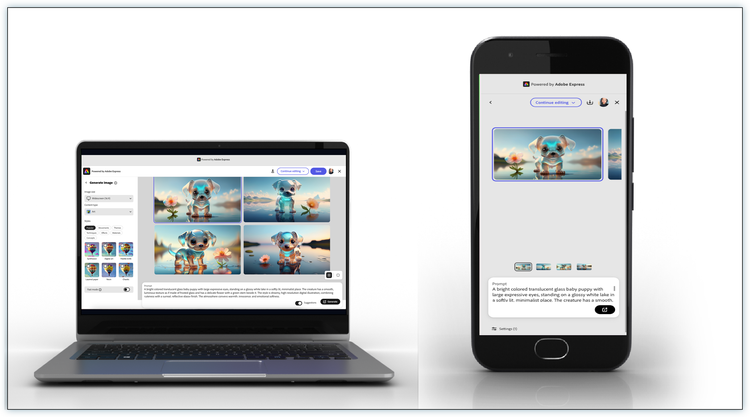
The Adobe Express Embed SDK supports mobile web out of the box, allowing developers to implement creative workflows on mobile devices.
What is Mobile Web Support?
The Adobe Express Embed SDK natively supports mobile web browsers, enabling developers to implement creative workflows across desktop and mobile devices. Mobile web support allows your applications to work seamlessly on smartphones, tablets, and other mobile devices through web browsers.
When to Use Mobile Web Support
Mobile web support is ideal for applications that need to reach users across all devices. Consider implementing mobile web support when:
- Building responsive applications: Your application needs to work seamlessly on both desktop and mobile devices
- Targeting mobile-first audiences: Your users primarily access your application through mobile devices
- Creating cross-platform experiences: You want consistent creative workflows across different screen sizes and input methods
- Supporting diverse browser environments: Your users may be on various mobile browsers with different capabilities
- Expanding user reach: You want to make creative tools accessible to users regardless of their device
Prerequisites
Before implementing mobile web support, you should have a solid understanding of the basic Adobe Express Embed SDK integration. We recommend completing the following resources first:
- Quickstart Guide: Learn the fundamentals of SDK integration, including setup, initialization, and basic configuration
- Getting Started Tutorial: Follow a hands-on tutorial to build your first integration
- SDK Tutorials: Explore additional tutorials for specific workflows like Generate Image and Edit Image modules
Mobile web support builds upon these core concepts, so familiarity with standard SDK integration is essential before adding mobile-specific configurations.
How to Implement Mobile Web Support
The Adobe Express Embed SDK works on mobile web by default. The skipBrowserSupportCheck parameter is specifically designed to bypass browser compatibility checks that might otherwise cause the SDK to fail initialization on mobile browsers.
Implementation Path
🎯 Quick Start
Perfect for getting mobile web support working immediately:
- Set
skipBrowserSupportCheck: true - Add basic mobile detection
- Configure container sizing
🔧 Standard Implementation
For production-ready mobile experiences:
- Add dynamic loading with error handling
- Implement performance optimizations
- Configure mobile-specific UI elements
🚀 Advanced Features
For optimized, custom mobile experiences:
- Custom UI patterns for mobile
- PWA integration
Module Compatibility
While the Adobe Express Embed SDK works well across all workflows on mobile web, this section focuses on the Generate Image and Edit Image modules as they represent the most common use cases for mobile implementations.
Generate Image Module
The Generate Image module works well on mobile web with full functionality:
- Generate image from text
- Export options
- All standard such as styles, content types, etc.
- Rich Preview: Not available on mobile phones, but available on tablets
- Prompt Bar suggestions: Not available
Edit Image Module
The Edit Image module is possible on mobile web but may have some limitations:
- Basic editing features such as crop, remove background, etc. work
- Some advanced features such as export options may have issues
- Performance may vary based on device capabilities
- Touch interface optimizations may be limited on mobile phones
Configuration
🚀 Quick Setup (Recommended)
Get mobile web support working in minutes
const hostInfo = {
  clientId: "your-client-id", // Your application client ID
  appName: "your-app-name", // Your application name
};

// Skip browser compatibility checks for mobile web
const configParams = {
  skipBrowserSupportCheck: true // 👈 Skip browser checks to prevent failures
};

// Initialize the Adobe Express Embed SDK
const { editor, module, quickAction } = await window.CCEverywhere.initialize(
  hostInfo,
  configParams
);
Use skipBrowserSupportCheck: true to bypass browser compatibility checks and prevent SDK initialization failures on mobile browsers.
⚙️ Advanced Configuration
For developers who need custom mobile optimizations
const hostInfo = {
  clientId: "your-client-id",
  appName: "your-app-name",
  appVersion: { major: 1, minor: 0 },
  platformCategory: "web" // Required for applications
};

const configParams = {
  skipBrowserSupportCheck: true, // Skip browser checks for mobile web
  locale: "en_US", // Optional: Set locale
  loginMode: "delayed" // Optional: Delay login until export
};

// Initialize with browser check bypass
const { editor, module, quickAction } = await window.CCEverywhere.initialize(
  hostInfo,
  configParams
);
Understanding Browser Support
Standard Browser Requirements
By default, the Adobe Express Embed SDK has specific technical requirements for optimal performance. For complete details on browser versions, hardware requirements, and system specifications, see the Technical Requirements guide.
Mobile Browser Considerations
Mobile browsers may have limitations that affect SDK functionality:
- Performance: Limited processing power and memory
- WebGL support: May be limited or unavailable
- Touch interfaces: Different interaction patterns
- Screen size: Smaller display areas
- Network conditions: Variable connectivity
Implementation Strategies
Choose the approach that best fits your application:
Essential Strategies (Start Here)
Mobile Detection and UI Configuration ⭐ Essential
Necessary to apply mobile-specific configurations only when needed, preventing desktop users from getting suboptimal mobile UI.
Implement sophisticated mobile detection:
// Advanced mobile detection function
function isMobileOrTablet() {
  const viewportWidth = window.innerWidth;
  const userAgent = navigator.userAgent;
  const isMobileDevice = /Android|webOS|iPhone|iPad|iPod|BlackBerry|IEMobile|Opera Mini/i.test(userAgent);
  const MIN_DESKTOP_WIDTH = 768;

  return isMobileDevice && viewportWidth < MIN_DESKTOP_WIDTH;
}

// Mobile UI toggle support
const urlParams = new URLSearchParams(window.location.search);
const forceMobileUI = urlParams.get('forceMobileUIOnDesktop') === 'true';
const enableMobileUi = isMobileOrTablet() || forceMobileUI;

const configParams = {
  skipBrowserSupportCheck: enableMobileUi, // Skip browser checks for mobile UI
  locale: "en_US"
};

try {
  const { editor, module, quickAction } = await window.CCEverywhere.initialize(
    hostInfo,
    configParams
  );

  // Mobile-specific optimizations
  if (enableMobileUi) {
    configureMobileExperience(editor, module, quickAction);
  }
} catch (error) {
  console.error("SDK initialization failed:", error);
  // Handle initialization failure gracefully
}
Mobile UI Container Sizing ⭐ Essential
Necessary to ensure the SDK interface fits properly on smaller mobile screens and provides optimal user experience across devices.
Quick Start: Use
{ width: 390, height: 850, unit: 'px' }for mobile container sizing
Complete implementation example:
// Mobile container constants
const DEFAULT_MOBILE_SIZE = { width: 390, height: 850, unit: 'px' };
const MIN_DESKTOP_WIDTH = 768;

const getMobileConfig = () => {
  const isMobile = window.innerWidth < MIN_DESKTOP_WIDTH;

  return {
    skipBrowserSupportCheck: true,
    // Mobile-specific optimizations
    ...(isMobile && {
      // Use mobile container sizing
      containerSize: DEFAULT_MOBILE_SIZE,
      // Limit features for mobile
      allowedFileTypes: ['image/png', 'image/jpeg'], // Skip video/PDF on mobile
    })
  };
};

// Platform category detection for applications
const ccEverywhereConfig = {
  hostInfo: {
    ...hostInfo,
    platformCategory: 'web' // applications always use 'web' platform
  },
  configParams: getMobileConfig()
};

const { editor, module, quickAction } = await window.CCEverywhere.initialize(
  ccEverywhereConfig.hostInfo,
  ccEverywhereConfig.configParams
);
Advanced Strategies
Dynamic SDK Loading
Necessary to handle SDK loading failures gracefully and provide feature detection before attempting to use SDK functionality.
Quick Start: Add try-catch around SDK initialization and check feature availability before use
Complete implementation example:
// Dynamic SDK import
async function loadSDK() {
  try {
    // Load SDK dynamically for applications
    let CCEverywhere = await import(`cc-everywhere-test-app/3p/CCEverywhere`);

    const configParams = {
      skipBrowserSupportCheck: true
    };

    const { editor, module, quickAction } = await CCEverywhere.initialize(
      hostInfo,
      configParams
    );

    // Check if features are available
    if (module && typeof module.createImageFromText === 'function') {
      // Enable text-to-image features in your UI
      // Add your own code here to enable text-to-image functionality
      document.getElementById('generate-image-btn').style.display = 'block';
      console.log('Text-to-image generation available');
    } else {
      // Provide fallback for limited mobile support
      document.getElementById('generate-image-btn').style.display = 'none';
      document.getElementById('feature-message').textContent = 'Some features are not available on your device';
      console.log('Limited feature set available on this device');
    }

    return { editor, module, quickAction };
  } catch (error) {
    console.error("SDK loading failed:", error);
    // Handle SDK loading failure
    return null;
  }
}
Mobile UI Implementation Pattern
Necessary to provide different UI layouts and interactions optimized for touch interfaces and smaller screens.
Implement conditional rendering for mobile UI:
// Mobile UI conditional rendering
function renderMobileUI(enableMobileUi) {
  if (enableMobileUi) {
    // Mobile-specific layout
    return {
      containerSize: DEFAULT_MOBILE_SIZE,
      navigation: 'mobile', // Use mobile navigation
      sidebar: 'overlay', // Overlay sidebar on mobile
      layout: 'responsive'
    };
  } else {
    // Desktop layout
    return {
      containerSize: { width: '100%', height: '600px' },
      navigation: 'desktop',
      sidebar: 'persistent',
      layout: 'fixed'
    };
  }
}

// Apply mobile UI configuration
const mobileConfig = renderMobileUI(enableMobileUi);
const appConfig = {
  ...mobileConfig,
  callbacks: {
    onPublish: (intent, publishParams) => {
      // Handle mobile-specific publishing
      handleMobilePublish(publishParams);
    }
  }
};
Best Practices
1. Graceful Degradation
Always provide fallback experiences for when mobile web support is limited. Implement proper error handling and alternative experiences when the SDK fails to initialize on mobile devices.
2. User Experience Considerations
Design your mobile experience with these considerations:
- Touch-friendly interfaces: Ensure buttons and controls are appropriately sized for finger interaction
- Loading states: Show clear feedback during SDK initialization and processing
- Error handling: Provide helpful, mobile-specific error messages for users
- Offline considerations: Handle network connectivity issues gracefully with appropriate messaging
- Responsive design: Ensure your interface adapts well to different mobile screen sizes
- Performance feedback: Indicate when operations may take longer on mobile devices
Common Use Cases
1. Social Media Content Creation
The Generate Image module works well on mobile web, making it perfect for social media content creation. Key considerations for this use case:
- Mobile-optimized container sizing: Use responsive dimensions that work well on mobile screens
- Touch-friendly export options: Implement easy-to-tap sharing buttons
- Prompt handling: Allow users to easily input text prompts on mobile keyboards
2. Mobile Photo Editing
The Edit Image module is possible on mobile web but may have some limitations. Important considerations:
- Performance expectations: Basic editing features work well, but advanced features may be slower
- Touch interface: Ensure editing controls are optimized for finger interaction
- File size limits: Consider limiting input image sizes for better mobile performance
- Simplified workflows: Focus on essential editing features rather than complex operations
3. Progressive Web App Integration
Integrate with progressive web apps for enhanced mobile experiences:
- Service worker integration: Register service workers for offline capabilities
- App-like experience: Use standalone display mode detection for PWA-specific optimizations
- Delayed login: Implement delayed authentication for better offline scenarios
- Mobile UI patterns: Apply mobile-specific layouts when running as a PWA
- Installation prompts: Guide users to install your PWA for better mobile access
Troubleshooting
Common Issues
SDK fails to initialize on mobile
- Ensure
skipBrowserSupportCheck: trueis set - Check for JavaScript errors in mobile browser console
- Verify network connectivity
Poor performance on mobile devices
- Limit file types to lighter formats (PNG/JPEG instead of PDF/MP4)
- Use
loginMode: "delayed"to reduce initial load - Implement proper loading states
Features not working as expected
- Test feature availability before using
- Implement graceful fallbacks
- Provide user feedback for unsupported features
Debugging Tips
const debugMobileSupport = async () => {
  console.log('User Agent:', navigator.userAgent);
  console.log('Screen Size:', window.innerWidth, 'x', window.innerHeight);
  console.log('WebGL Support:', !!window.WebGL2RenderingContext);

  try {
    const { editor, module, quickAction } = await window.CCEverywhere.initialize(
      hostInfo,
      { skipBrowserSupportCheck: true }
    );

    console.log('SDK initialized successfully');
    console.log('Available features:', {
      editor: !!editor,
      module: !!module,
      quickAction: !!quickAction
    });

    // Log app config for debugging
    console.log('App Config:', appConfig);

    // Log export config for debugging
    console.log('Export Config:', exportConfig);
  } catch (error) {
    console.error('SDK initialization failed:', error);
  }
};
Migration from Desktop-Only
If you're adding mobile web support to an existing desktop application:
1. Update Configuration
// Before: Desktop-only
const configParams = {
  locale: "en_US"
};

// After: Mobile web support
const configParams = {
  skipBrowserSupportCheck: true, // Add this line
  locale: "en_US"
};
2. Add Mobile Detection
const isMobile = /Android|webOS|iPhone|iPad|iPod|BlackBerry|IEMobile|Opera Mini/i.test(navigator.userAgent);

const configParams = {
  skipBrowserSupportCheck: isMobile, // Conditional mobile support
  locale: "en_US"
};
3. Implement Fallbacks
const initializeWithFallback = async () => {
  try {
    const sdk = await window.CCEverywhere.initialize(hostInfo, configParams);
    return sdk;
  } catch (error) {
    if (isMobile) {
      // Show mobile-specific error message
      showMobileErrorMessage();
    } else {
      // Show desktop error message
      showDesktopErrorMessage();
    }
    throw error;
  }
};