Handle Webhook Events
Learn how to register a webhook in the Adobe Developer Console and receive real-time job completion notifications.
Overview
When you submit a job, such as bulk-create-variation, create-variation, or export-rendition, the Express API runs the job asynchronously and returns a jobId. Without webhooks, you must call the /status endpoint repeatedly until the job finishes.
With webhook support, you register an HTTPS endpoint once in the Developer Console. When the job reaches a terminal state (succeeded, failed, partially succeeded, or cancelled), the Express API publishes an event to Adobe I/O Events, which then delivers a notification to your endpoint. Your application is notified immediately—no polling required.
data-variant=warning
data-slots=text
POST /beta/create-variation), and Export Rendition (POST /beta/export-rendition).How it works
- Register a webhook endpoint in your Developer Console project under the Adobe Express API events card.
- Submit an async request (for example,
POST /bulk-create-variation,POST /beta/create-variation, orPOST /beta/export-rendition). The API returns ajobId. - The Express API processes the job asynchronously.
- When the job reaches a terminal state, the Express API publishes a CloudEvents-formatted event to Adobe I/O Events.
- Adobe I/O Events delivers the notification to your registered webhook URL. The event type identifies the operation that finished. The
dataobject always containsjobIdandstatus;outputsanderrorare optional. - Your application handles the notification and, if needed, calls the
/statusendpoint using thejobIdto retrieve job outputs or full job details.
Prerequisites
Before you register a webhook:
- A Developer Console project with the Adobe Express API added. Follow the Create Credentials guide to set up a project with OAuth Server-to-Server credentials.
- A publicly accessible HTTPS webhook endpoint. Your server must be reachable from the internet (not localhost) and must respond correctly to a challenge request during registration. For local development, you can use ngrok or webhook.site as a temporary endpoint.
data-variant=info
data-slots=text
Register your webhook in the Adobe Developer Console
1. Open your project and add the Adobe Express API events
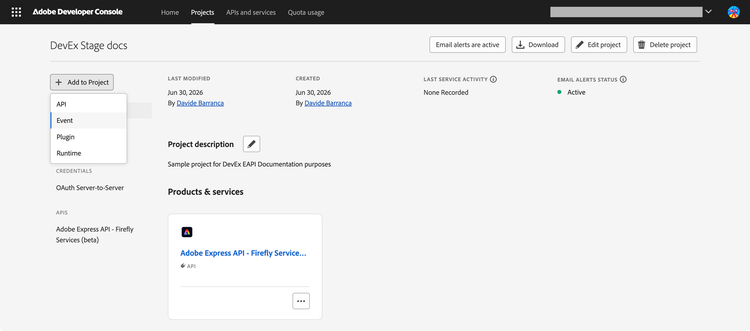
- Sign in at Adobe Developer Console and open your project (or create a new one).
- Click Add to Project and select Event.
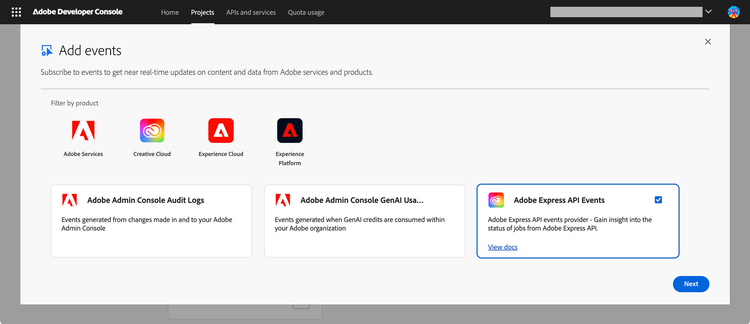
- In the event catalog, filter by Creative Cloud and select Adobe Express API. Click Next.
2. Subscribe to events
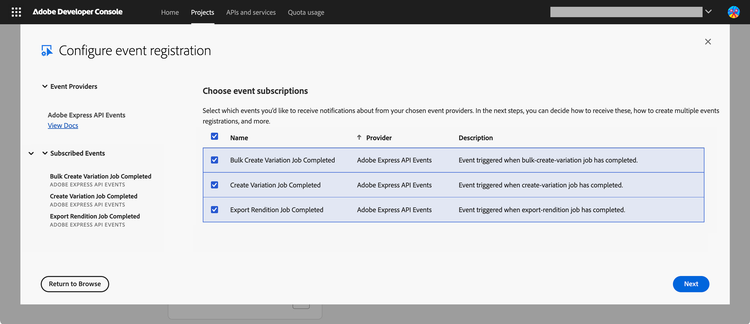
Select the completion events for the operations you want to receive notifications for:
- Create Variation:
com.adobe.express-api.v1.create-variation.completed - Bulk Create Variation:
com.adobe.express-api.v1.bulk-create-variation.completed - Export Rendition:
com.adobe.express-api.v1.export-rendition.completed
Each event covers all terminal outcomes. Read data.status to determine the outcome. You can subscribe to any combination of event types. Click Next.
3. Set up OAuth Server-to-Server credentials
When prompted for a credential type, select OAuth Server-to-Server (or choose your existing credential). This credential is used to authenticate your application's API calls; it is separate from the webhook delivery mechanism.
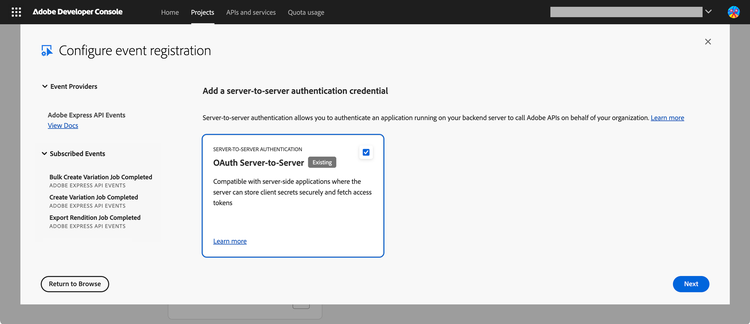
In the following screen (not illustrated here), you'll be able to provide a name and description for this event registration.
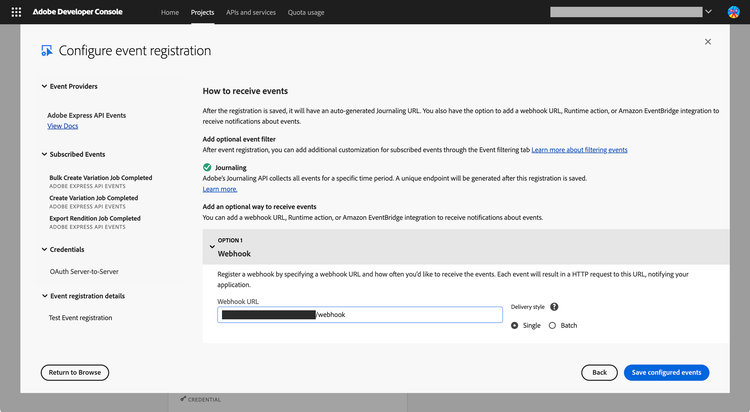
4. Configure the event registration
In the following screen, configure your webhook URL and delivery options:
- Enable Webhook.
- Enter your publicly accessible HTTPS webhook URL.
- Choose Batch delivery if you prefer to receive multiple events in a single HTTP request (recommended for high-volume workloads); otherwise leave it as Single.
Challenge request
When you save the registration, Adobe I/O Events sends a one-time HTTP GET request to your webhook URL with a challenge query parameter. Your endpoint must respond with the challenge value to prove it is reachable. For example:
GET https://your-endpoint.example.com/webhook?challenge=8ec8d794-e0ab-42df-9017-e3dada8e84f7
Your endpoint should respond with:
HTTP/1.1 200 OK
Content-Type: application/json

{"challenge":"8ec8d794-e0ab-42df-9017-e3dada8e84f7"}
For full details on synchronous and asynchronous challenge validation, see Introduction to Adobe I/O Events Webhooks.
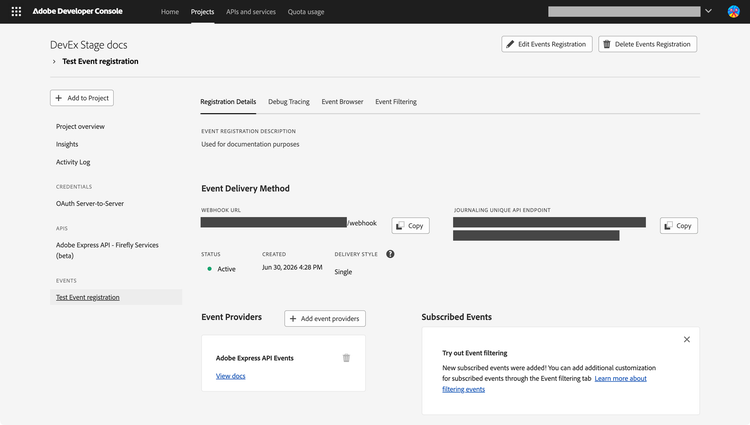
5. Verify the registration
After saving, check that the Status shown in the Registration Details tab is Active. If it shows Disabled, your endpoint did not respond correctly to the challenge request. Re-check the URL and challenge handler, then edit the registration to re-trigger the challenge.
Event types
Adobe Express API exposes one completion event per operation. All events follow the CloudEvents 1.0 specification.
com.adobe.express-api.v1.create-variation.completedcom.adobe.express-api.v1.bulk-create-variation.completedcom.adobe.express-api.v1.export-rendition.completedThe .completed suffix means the operation finished, not necessarily that it succeeded. The outcome is carried only in data.status: succeeded, partially_succeeded, failed, or cancelled. There are no separate event types for these outcomes.
Event payload structure
Events are delivered as HTTP POST requests to your webhook URL. The body is a JSON object following the CloudEvents spec. The following examples show a successful Create Variation job and a cancelled Bulk Create Variation job. Both examples include only the guaranteed data fields.
data-slots=heading, code
data-repeat=2
data-languages=json, json
Create Variation: succeeded
{
  "specversion": "1.0",
  "type": "com.adobe.express-api.v1.create-variation.completed",
  "source": "urn:aio_provider_metadata:cc_ffs_exapi_job_status",
  "id": "5b5341fb-b4c1-422d-bc1a-b4ca248ec6da",
  "time": "2026-06-23T13:57:12.303Z",
  "datacontenttype": "application/json",
  "requestorclientid": "<YOUR_CLIENT_ID>",
  "data": {
    "jobId": "57b96a1e-4896-4cad-bb82-b5674454b4b5",
    "status": "succeeded"
  }
}
Bulk Create Variation: cancelled
{
  "specversion": "1.0",
  "type": "com.adobe.express-api.v1.bulk-create-variation.completed",
  "source": "urn:aio_provider_metadata:cc_ffs_exapi_job_status",
  "id": "8023f672-0de6-41cd-bbb9-e99b0a142560",
  "time": "2026-06-23T13:57:12.303Z",
  "datacontenttype": "application/json",
  "requestorclientid": "<YOUR_CLIENT_ID>",
  "data": {
    "jobId": "57b96a1e-4896-4cad-bb82-b5674454b4b5",
    "status": "cancelled"
  }
}
Field descriptions
Top-level fields
specversion"1.0".typesourceidtimedatacontenttypedata payload. Always "application/json".requestorclientideventidrecipientclientiddatadata object fields
data.jobIddata.status"succeeded", "partially_succeeded", "failed", or "cancelled".data.outputsdata.errordata-variant=info
data-slots=text
data.jobId and data.status are the only guaranteed fields in every notification. Your application should treat data.outputs and data.error as optional and handle their absence gracefully.Event filtering
Adobe I/O Events uses a fan-out model at the organization level: when an event is published, it is delivered to all registrations that exist within the same IMS organization, regardless of which project created the job. If you have multiple projects in your organization, all of their webhook registrations may receive an event.
To ensure your webhook only receives events relevant to your application, apply a client ID filter when configuring your event registration.
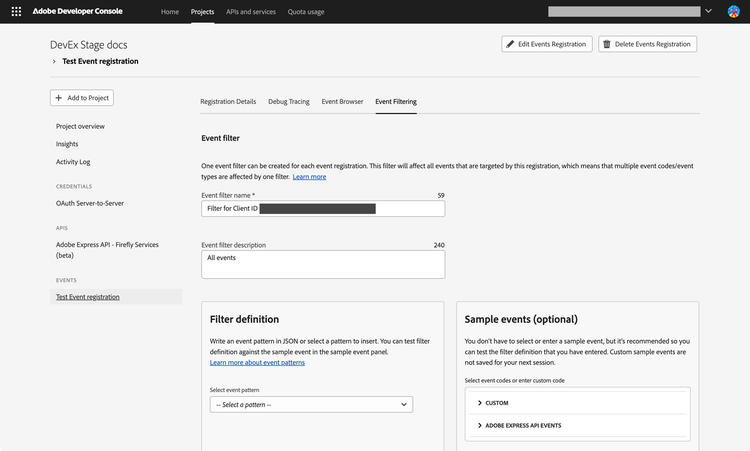
- In the event registration settings, locate the Event Filtering section.
- Name and describe your filter (for example, "Filter by Client ID").
- Add a filter on Client ID matching the client ID of your OAuth Server-to-Server credential. Event filtering is based on
requestorclientid—the same field described in Field descriptions—which identifies the client that submitted the job.
{
  "requestorclientid": [
    {
      "equals-ignore-case": "<your_client_id_here>"
    }
  ]
}
This ensures that only events triggered by jobs submitted with your client ID are delivered to your webhook.
You can also filter by:
- Event type — subscribe only to the operations you need (for example,
com.adobe.express-api.v1.create-variation.completed). - Job ID — filter for a specific job identifier.
- Status — filter by
data.status(for example,succeeded).
Click the Filter Definition > Select a Pattern dropdown for a series of demo patterns that you can copy/paste in the filter definition below. For details on advanced filtering options, see Subscriber Defined Filtering.
data-variant=info
data-slots=text
Security
Your webhook URL must be publicly accessible from the internet. Adobe strongly recommends securing it against forged requests. Adobe I/O Events provides two options:
- Digital Signature — Adobe I/O Events signs each event payload with a public/private key pair and sends the signature in request headers. Your endpoint verifies the signature using Adobe's published public keys.
- mTLS — Your server requires Adobe I/O Events to present a client certificate during the TLS handshake.
For full details on both options, see the Security Considerations section of the Adobe I/O Events Webhooks guide.
Troubleshooting
Webhook registration shows Disabled or Unstable
- Verify your webhook URL is publicly accessible over HTTPS (not localhost).
- Confirm your endpoint returns HTTP
200 OKin response to both GET (challenge) and POST (event delivery) requests. - Check that the GET challenge handler returns the exact value of the
challengequery parameter in the response body. - Confirm you have selected the correct event types during registration.
To re-enable a disabled registration, edit the event registration in the Developer Console. This re-triggers the challenge request and, if successful, reactivates the registration.
For information about retry behavior, the journaling API, and automatic disable thresholds, see Troubleshooting Unstable/Disabled Registration Status in the Adobe I/O Events guide.
Events are not being delivered
- In the Developer Console, open the Debug Tracing tab for your event registration to inspect recent delivery attempts and response codes.
- Verify that your Client ID filter matches the client ID used when submitting the job (see Event filtering).
- Check that the event registration Status is Active, not Disabled or Unstable.
Payload fields are missing
data.outputs and data.error are optional and may not be present in every event. Design your handler to check for their presence before accessing them (see Field descriptions). If data.outputs is absent, call the /status endpoint using data.jobId to retrieve job outputs.
Next steps
- Create Document Variations — submit a
create-variationjob using the Adobe Express API. - Export Document Renditions — submit an
export-renditionjob using the Adobe Express API. - Generate Variations — submit a single-document variation job using the Adobe Express API.
- Create Credentials — set up a Developer Console project with OAuth Server-to-Server credentials.
- Add Events to a project — detailed Developer Console documentation for event registration.
- Introduction to Adobe I/O Events Webhooks — complete reference for webhook validation, security, retry policies, and journaling.