Header Menu
The header menu is the set of buttons at the top right of AEM Assets View. Using the headerMenu namespace, an extension can add custom header menu buttons, hide built-in header menu buttons by id (removing them from the header menu), and override built-in header menu button clicks so the default handler does not run.
data-variant=info
data-slots=text
data-variant=info
data-slots=text
A namespace shared across screens
Unlike the actionBar and quickActions namespaces (specific to the Browse View) and the detailSidePanel namespace (specific to the Details View), the headerMenu namespace is shared between the Browse View and the Details View. When an extension implements headerMenu (under the unified aem/assets/assetsview/1 extension point, or a standalone aem/assets/browse/1 or aem/assets/details/1 extension point), those methods are used for header menu handling on both screens.
The built-in button set and button ids differ by screen and context, so use the appropriate ids from the Built-in header menu buttons tables below. The meaning of the context and resource arguments passed to the methods also depends on the screen — see Method arguments by screen.
In the Browse View, custom buttons are added to the header menu between the ellipses menu and the default header menu buttons.
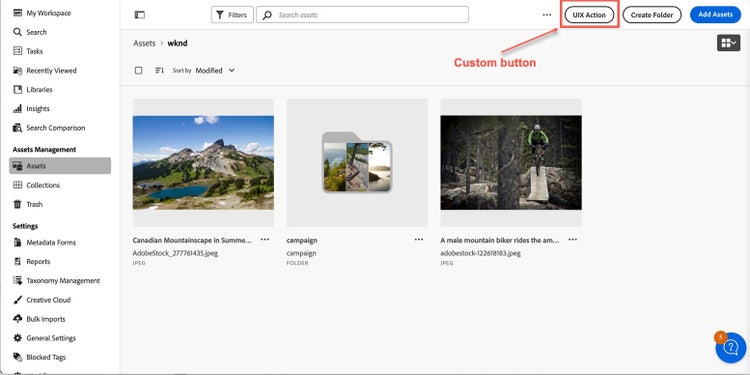
Built-in header menu buttons
The host exposes the following built-in header menu button ids that can be hidden or overridden through the headerMenu methods.
Browse View (browsing context):
assetscollectionsrecentsearchtrashIn recent, search, and trash, there are no built-in header menu buttons to hide, but extensions can still add custom header menu buttons via getButtons.
Details View (the details context):
detailsMethod arguments by screen
All headerMenu methods receive a context and, for getButtons/getHiddenButtonIds/overrideButton, a resource. Their meaning depends on the screen the header menu is being rendered on:
resourceid, path). In contexts without a notion of active resource (trash, search, recent), resource is undefined. In assets and collections, it is an object with id and path, even for the root folder.id, path), matching details.getCurrentResourceInfo().Extension API Reference
The headerMenu namespace supports adding custom header menu buttons and, optionally, hiding and overriding built-in header menu buttons. All of its methods are optional — implement only the ones your extension needs:
getButtons({ context, resource })— optionalgetHiddenButtonIds({ context, resource })— optionaloverrideButton({ buttonId, context, resource })— optional
For example, you can implement only getHiddenButtonIds or overrideButton without implementing getButtons.
getButtons({ context, resource })
Description: Returns an array of custom header menu button definitions that are added to the application's header menu. These buttons are rendered alongside built-in header menu buttons and let extensions surface actions in the header menu.
Parameters:
- context (
string): current context (see Method arguments by screen). - resource (
object): information about the current location or asset (see Method arguments by screen).
Returns: (array) An array of button configuration objects, where each object contains:
- id (
string): Unique identifier for the button within the extension - label (
string): Display text for the button - icon (
string): Name of the React-Spectrum workflow icon - onClick (
function): Callback function executed when the header menu button is clicked; receives{ context, resource } - variant (
string, optional): Button visual style, defaults to'primary'- Supported values:
'accent','primary','secondary','negative'
- Supported values:
Example:
headerMenu: {
  async getButtons({ context, resource }) {
    if (context !== 'assets') {
      return [];
    }
    return [
      {
        id: 'export-metadata',
        label: 'Export Metadata',
        icon: 'Download',
        variant: 'secondary',
        onClick: async ({ context, resource }) => {
          // Custom logic
        },
      },
      {
        id: 'custom-workflow',
        label: 'Start Workflow',
        icon: 'Workflow',
        onClick: async ({ context, resource }) => {
          // Custom logic
        },
      },
    ];
  },
},
getHiddenButtonIds({ context, resource })
Description: Returns an array of built-in header menu button ids that should be hidden.
The host calls this method when the location, asset, or context relevant to the header menu changes. Extension code should return quickly; avoid slow or blocking work (for example backend calls), because the host may wait on the result before rendering header menu buttons.
Parameters:
- context (
string): current context (see Method arguments by screen). - resource (
object): information about the current location or asset (see Method arguments by screen).
Returns: (array) An array of built-in header menu button ids to hide, or an empty array if none should be hidden.
Example:
getHiddenButtonIds: ({ context, resource }) => {
  if (context === 'assets') {
    return ['createFolder'];
  }
  return [];
},
overrideButton({ buttonId, context, resource })
Description: Return true if the extension handled the click and the built-in header menu button handler should not run. Return false to let the Host run the default behavior.
Parameters:
- buttonId (
string): Built-in header menu button id from Built-in header menu buttons. - context (
string): current context (see Method arguments by screen). - resource (
object): information about the current location or asset (see Method arguments by screen).
Returns: (boolean) false for the Host to use the built-in handler, true to skip the built-in handler.
Example:
overrideButton: ({ buttonId, context, resource }) => {
  if (buttonId === 'addAssets') {
    // Custom handling; skip built-in handler
    return true;
  }
  return false;
},
Examples
These code snippets demonstrate how to add, hide, and override header menu buttons. (The examples below serve illustrative purposes thus omit certain import statements and other non-important parts.) In a combined extension, the headerMenu namespace is declared alongside the Browse View (actionBar, quickActions) and Details View (detailSidePanel) namespaces in the same register() call.
Example of adding a custom header menu button
In this example, an Export Metadata button is added to the header menu in the assets context.
function ExtensionRegistration() {
    const init = async () => {
        const guestConnection = await register({
            id: extensionId,
            methods: {
                // other namespaces (actionBar, quickActions, detailSidePanel) ...
                headerMenu: {
                    async getButtons({ context, resource }) {
                        if (context !== 'assets') {
                            return [];
                        }
                        return [
                            {
                                id: 'export-metadata',
                                label: 'Export Metadata',
                                icon: 'Download',
                                variant: 'secondary',
                                onClick: async ({ context, resource }) => {
                                    // Custom logic
                                },
                            },
                        ];
                    },
                },
            },
        });
    };
    init().catch(console.error);

    return <Text>IFrame for integration with Host (AEM Assets View)...</Text>;
}

export default ExtensionRegistration;
Example of hiding a built-in header menu button
In this example, the built-in Create folder header menu button (createFolder) is hidden in the assets context.
headerMenu: {
    async getHiddenButtonIds({ context, resource }) {
        if (context === 'assets') {
            return ['createFolder'];
        }
        return [];
    },
},
Example of overriding a built-in header menu button
In this example, when the user activates the Add assets header menu button (addAssets), the extension runs custom logic and skips the Host's default handler by returning true.
headerMenu: {
    async overrideButton({ buttonId, context, resource }) {
        if (buttonId === 'addAssets') {
            // Custom upload or validation flow
            return true;
        }
        return false;
    },
},
Example in the Details View
In the Details View, hide the built-in Download header menu button and take over the Assign tasks click (skipping the Host handler when you return true):
headerMenu: {
    async getHiddenButtonIds({ context, resource }) {
        return ['download'];
    },
    async overrideButton({ buttonId, context, resource }) {
        if (buttonId === 'assignTasks') {
            // Custom assign-tasks flow; skip built-in handler
            return true;
        }
        return false;
    },
},
To open a custom dialog from a header menu button, refer to the Modal API provided by AEM Assets View to all extensions for implementation of dialog management.