Business configuration
Based on the businessConfig schema that you defined in the app.commerce.config, the configuration library generates the runtime actions that the App Management UI uses to render a configuration form with no custom code required.
See Initialize your app for setup instructions and Build and deploy for information about generated runtime actions and project structure.
Example
The following example shows a complete configuration schema with various field types:
import { defineConfig } from "@adobe/aio-commerce-lib-app/config"

export default defineConfig({
  businessConfig: {
    schema: [
      {
        name: "api-name",
        label: "API name",
        type: "text",
        default: "",
      },
      {
        name: "api-endpoint",
        label: "API Endpoint",
        type: "url",
        default: "https://api.example.com",
      },
      {
        name: "api-key",
        label: "API Key",
        type: "password",
      },
      {
        name: "level",
        label: "Risk Level",
        type: "list",
        options: [
          { label: "Low", value: "low" },
          { label: "Medium", value: "medium" },
          { label: "High", value: "high" },
        ],
        default: "medium",
        selectionMode: "single",
      },
    ],
  },
});
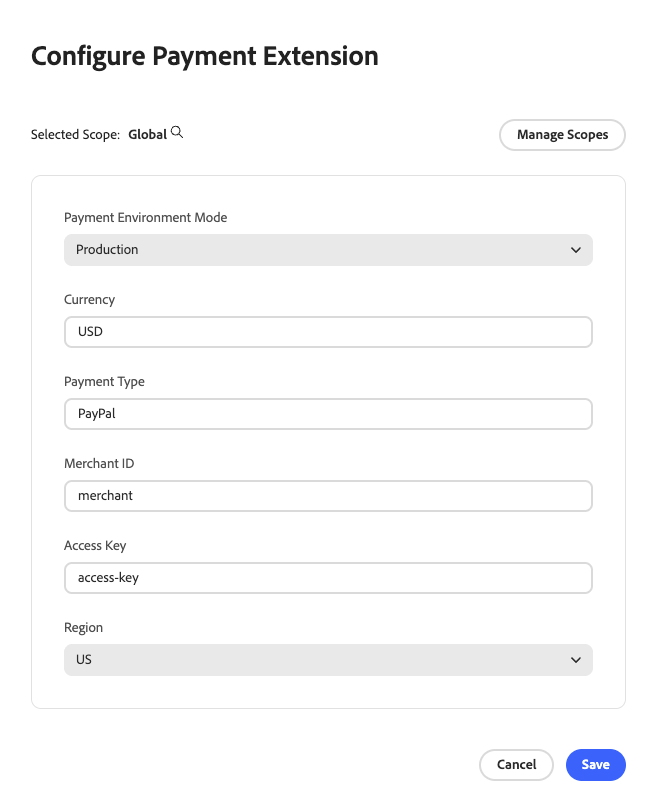
Schema properties
This businessConfig schema contains the following properties:
namelabeldefaultdescriptionoptionslist and dynamicList. For list, an array of { label, value } objects. For dynamicList, an async function that receives runtime action params and returns that array.selectionModelist and dynamicList. Set to single for standard dropdown or multiple to allow multiple selections.envpaas) or SaaS (saas). To enable the field in all environments, omit the property or specify both values.Supported field types
The following field types are available for your businessConfig schema:
textpasswordemailtelurllistdynamicList@adobe/aio-commerce-lib-config version 1.5.0 or later. See Dynamic list fields.booleanfalse.Password field encryption
Password fields are automatically encrypted using AES-256-GCM when stored and decrypted when retrieved.
To validate that your encryption key is properly configured, run:
data-slots=heading, code
data-repeat=4
data-languages=BASH, BASH, BASH, BASH
npm
npx aio-commerce-lib-config encryption validate
yarn
yarn exec aio-commerce-lib-config encryption validate
pnpm
pnpm exec aio-commerce-lib-config encryption validate
bun
bun x aio-commerce-lib-config encryption validate
This command is executed automatically during the pre-app-build hook.
To manually generate an encryption key, use:
data-slots=heading, code
data-repeat=4
data-languages=BASH, BASH, BASH, BASH
npm
npx aio-commerce-lib-config encryption setup
yarn
yarn exec aio-commerce-lib-config encryption setup
pnpm
pnpm exec aio-commerce-lib-config encryption setup
bun
bun x aio-commerce-lib-config encryption setup
This generates a secure 256-bit encryption key and adds AIO_COMMERCE_CONFIG_ENCRYPTION_KEY to your .env file.
data-variant=warning
data-slots=text
.env file to version control. Keep the encryption key secure and only accessible in the app runtime context. Operations fail if the key is not configured. Passwords are never stored in plain text.See Password Field Encryption for more information.
See Failed to decrypt configuration if you already see decrypt errors.
Multiple selection list fields
For fields that allow multiple selections, set selectionMode to multiple and the default value must be an array of strings, even if only one option is selected by default.
{
  name: "paymentMethods",
  label: "Enabled Payment Methods",
  type: "list",
  selectionMode: "multiple",
  options: [
    { label: "Credit Card", value: "credit_card" },
    { label: "PayPal", value: "paypal" },
    { label: "Apple Pay", value: "apple_pay" },
  ],
  default: ["credit_card"]
}
Dynamic list fields
Use dynamicList when dropdown options depend on data that is only available at runtime (for example, payment methods returned by an external API). The options property must be an async function that receives the runtime action params and returns an array of { label, value } objects. You can set default to a function that receives the resolved options and returns the default value.
{
  name: "paymentMethod",
  label: "Default Payment Method",
  type: "dynamicList",
  selectionMode: "single",
  options: async (params) => {
    const methods = await fetchPaymentMethods(params.SOME_API_KEY);
    return methods.map((m) => ({ label: m.title, value: m.code }));
  },
  default: (resolvedOptions) => resolvedOptions[0].value,
}
When your schema includes a dynamicList field, the options function may read values from runtime action inputs (such as API keys). Add those inputs to every action that calls initialize, including the generated app-config and config actions. See Configure action inputs for dynamic lists.
Because dynamicList options are resolved at runtime, initialize must be awaited and passed the action params. Import the schema from app.commerce.config; when your schema includes any dynamicList field, no configuration-schema.json file is generated because JSON cannot represent function values. See Initialize configuration.
Scope tree synchronization
Apps with businessConfig use a scope tree (Global, Commerce websites, stores, and store views) when merchants configure settings in App Management. That tree reflects Adobe Commerce scope structure as of the last sync. It is not kept in lockstep with Commerce automatically.
Commerce scope changes require a manual sync per app
When you add, rename, or remove websites, stores, or store views in Adobe Commerce, App Management does not refresh the scope hierarchy by itself. Cached scope data is used until an Admin runs Sync commerce scopes for that application.
If several apps are associated with the same instance (for example, ten apps that define business configuration), you must open each app in App Management and sync individually. From the application, open Manage scopes, open Quick actions, then choose Sync commerce scopes.
Removing scopes
After a scope is deleted in Commerce, run Sync commerce scopes again for each affected application. The operation replaces the cached tree with the current Commerce data, so scopes that no longer exist in Commerce disappear from App Management after a successful sync.
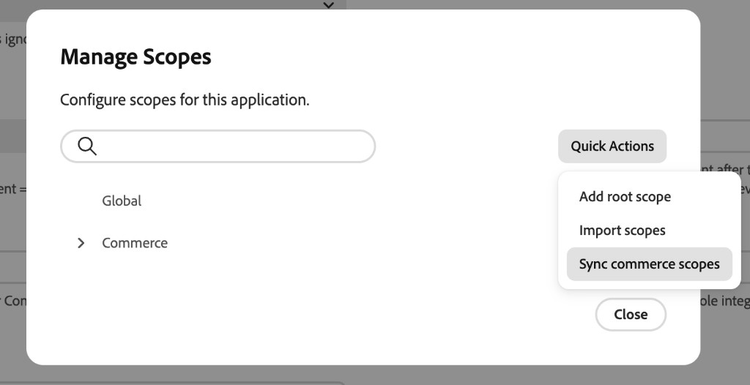
Syncing scopes from a runtime action
The @adobe/aio-commerce-lib-config functions getScopeTree, syncCommerceScopes, unsyncCommerceScopes, and setCustomScopeTree are callable directly, not only through the Admin UI actions behind Sync commerce scopes. Call them from your own runtime actions when you need to read or refresh the scope tree programmatically.
Schema requirements
Your app.commerce.config is validated each time you run a generate command (for example, npx aio-commerce-lib-app generate all). The schema validation checks for:
- Required properties. Fields must have
nameandtype.labelis optional. - Type-matched defaults. Default values must match the field type (for example, a
textfield cannot have anumberdefault). - Encryption key for passwords. If your schema contains password fields, configure an encryption key. See Password field encryption for more information.
Retrieve configuration at runtime
Use getConfiguration, getConfigurationByKey, and setConfiguration from @adobe/aio-commerce-lib-config to read or write configuration values in your App Builder runtime actions.
data-variant=info
data-slots=text
getConfiguration, getConfigurationByKey, or setConfiguration must call initialize first. Initialization is per action invocation; not once per deployment. If you add a new action that uses any of those three methods, add initialize at the start of that action’s main handler as well.The schema is held in memory only for that invocation. If you omit initialize, those configuration functions throw errors. See Initialization in the configuration library usage guide.
Initialize configuration
See Build and deploy for how the #app.commerce.config alias is generated. Import your schema from the alias and await initialize, passing the action params:
import { initialize } from "@adobe/aio-commerce-lib-config";
import appConfig from "#app.commerce.config";

export async function main(params) {
  await initialize({ schema: appConfig.businessConfig.schema, params });
}
When your schema includes a dynamicList field (requires @adobe/aio-commerce-lib-config version 1.5.0 or later), its options and default are functions resolved at runtime from the params you pass to initialize.
A scope selector tells the library which node in the scope tree to read or write. That tree can include Adobe Commerce scopes (such as websites and store views, each with a scope code and a level in the hierarchy), custom scopes you create in App Management (code only; see below), global scope, and other nodes that your app or merchants configure.
When the target scope has both a code and a level, which is typical for Commerce store and website scopes, use byCodeAndLevel.
import { initialize, getConfigurationByKey, byCodeAndLevel } from "@adobe/aio-commerce-lib-config";
import appConfig from "#app.commerce.config";

async function main(params) {
  initialize({ schema: appConfig.businessConfig.schema });

  const storeCode = params.store_code || "default";
  const storeLevel = params.store_level || "store_view";

  const { config: { value: endpoint } } = await getConfigurationByKey("api-endpoint", byCodeAndLevel(storeCode, storeLevel));
  const { config: { value: apiKey } } = await getConfigurationByKey("api-key", byCodeAndLevel(storeCode, storeLevel), {
    encryptionKey: params.AIO_COMMERCE_CONFIG_ENCRYPTION_KEY,
  });
}
When your action receives Adobe Commerce numeric IDs (for example, from a REST API response), use byWebsiteId, byStoreId, or byStoreViewId (available since @adobe/aio-commerce-lib-config 1.5.0). Each helper hard-codes its scope level so the same ID can target a website, store, or store view unambiguously.
import {
  initialize,
  getConfigurationByKey,
  byWebsiteId,
  byStoreId,
  byStoreViewId,
} from "@adobe/aio-commerce-lib-config";
import appConfig from "#app.commerce.config";

async function main(params) {
  initialize({ schema: appConfig.businessConfig.schema });

  const { config: { value: websiteEndpoint } } = await getConfigurationByKey(
    "api-endpoint",
    byWebsiteId(params.website_id),
  );

  const { config: { value: storeEndpoint } } = await getConfigurationByKey(
    "api-endpoint",
    byStoreId(params.store_id),
  );

  const { config: { value: storeViewEndpoint } } = await getConfigurationByKey(
    "api-endpoint",
    byStoreViewId(params.store_view_id),
  );
}
Custom scopes created in the App Management UI are identified by code only. They do not define a separate level in the tree. For those scopes you must use byCode("your-custom-scope-code"). byCodeAndLevel is not used for custom scopes because there is no level to pass. See the configuration library managing configuration topic for more information.
import { initialize, getConfigurationByKey, byCode } from "@adobe/aio-commerce-lib-config";
import appConfig from "#app.commerce.config";

async function main(params) {
  initialize({ schema: appConfig.businessConfig.schema });

  const { config: { value: endpoint } } = await getConfigurationByKey(
    "api-endpoint",
    byCode("your-custom-scope-code"),
  );
}
When you already know a scope's unique ID (for example, from a previous getScopeTree call), use byScopeId(scopeId) to select it directly, regardless of scope type.
import { initialize, getConfigurationByKey, byScopeId } from "@adobe/aio-commerce-lib-config";
import appConfig from "#app.commerce.config";

async function main(params) {
  initialize({ schema: appConfig.businessConfig.schema });

  const { config: { value: endpoint } } = await getConfigurationByKey(
    "api-endpoint",
    byScopeId(params.scope_id),
  );
}
Global scope and selectors
The getConfiguration, getConfigurationByKey, and setConfiguration functions accept an optional scope selector. When you omit it, the library resolves the global scope.
Write configuration values
Use setConfiguration to persist configuration values for a scope. For password fields, pass encryptionKey in the options object; omitting it throws an error.
import { initialize, setConfiguration, byCodeAndLevel } from "@adobe/aio-commerce-lib-config";
import appConfig from "#app.commerce.config";

async function main(params) {
  initialize({ schema: appConfig.businessConfig.schema });

  await setConfiguration(
    { config: [{ name: "api-key", value: params.newApiKey }] },
    byCodeAndLevel("default", "store_view"),
    { encryptionKey: params.AIO_COMMERCE_CONFIG_ENCRYPTION_KEY },
  );
}
The options object also supports a cacheTimeout (in seconds; defaults to 300) to control how long a resolved configuration value is cached.
Configure action inputs for dynamic lists
When a dynamicList field reads runtime inputs (for example, params.SOME_API_KEY), declare those inputs on every action that calls initialize, including generated App Management actions and any custom runtime actions that use @adobe/aio-commerce-lib-config.
data-orientation=horizontal
data-slots=heading, code
data-repeat=2
app-config
# src/commerce-extensibility-1/ext.config.yaml
actions:
  app-config:
    # ... other settings
    inputs:
      LOG_LEVEL: $LOG_LEVEL
      SOME_API_KEY: $SOME_API_KEY
config
# src/commerce-configuration-1/ext.config.yaml
actions:
  config:
    # ... other settings
    inputs:
      LOG_LEVEL: $LOG_LEVEL
      SOME_API_KEY: $SOME_API_KEY
Define the corresponding variable in your .env file (for example, SOME_API_KEY=your-key). Never commit .env to version control.
Repeat this step for each custom runtime action that calls initialize when your schema includes dynamicList fields.
For more patterns and API detail, see Managing configuration in the configuration library usage guide.
Tutorial
Watch this video to learn how to define a configuration schema and see the auto-generated Admin UI in action.