Using the Catalog Views and Policies API
Base URL
Use the following base URL for all Catalog Views and Policies API requests.
https://na1-sandbox.api.commerce.adobe.com/{{tenantId}}/admin/graphql
For sample requests and examples using the API, see the API Reference and the tutorial.
The URL structure is:
https://{{region}}-{{environment}}.api.commerce.adobe.com/{{tenantId}}
regionis the cloud region where your instance is deployed.environment-typeis included only for non-production URLs (sandbox).tenantIdis the unique identifier for your organization's specific instance within the Adobe Experience Cloud.
Get your instance ID
From Cloud Manager, you can find the endpoint URLs and tenant ID (instance ID) in the instance details for your Commerce Optimizer project.
Log in to your Adobe Experience Cloud account.
Under Quick access, click Commerce to open the Commerce Cloud Manager.
The Commerce Cloud Manager displays a list of instances that are available in your Adobe IMS organization.
To get the base URLs and instance ID, click the information icon next to the Adobe Commerce Optimizer instance name.
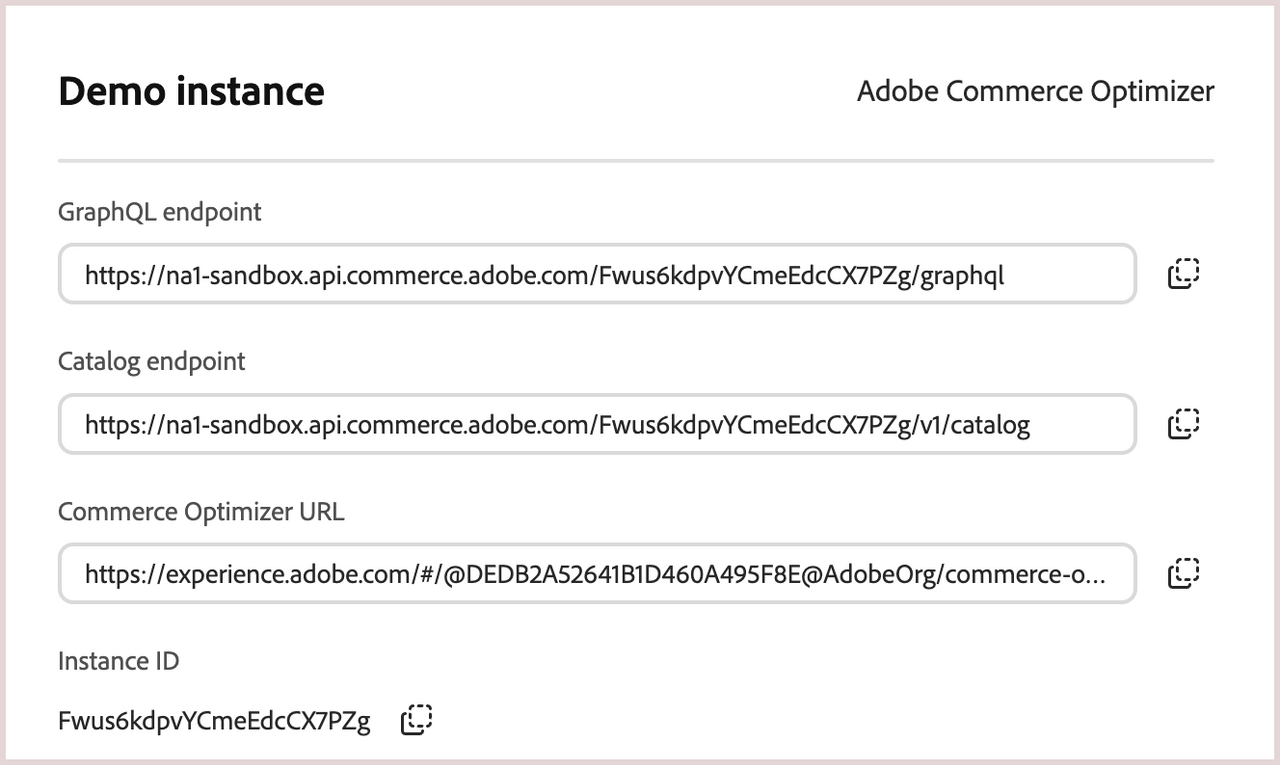

If you don't have access to Cloud Manager, you can also find the region and tenant ID from the access URL for the Adobe Commerce Optimizer application interface.
Authentication
Every API request must include a bearer token in the request header:
Authorization: Bearer {{accessToken}}
The bearer token is generated using the credentials from the Adobe developer project for the API integration. The token is valid for 24 hours. When it expires, use the Adobe developer project credentials to generate a new one.
Get credentials and bearer access tokens
To get API authentication credentials and tokens, create an Adobe developer project to enable communication between your Commerce project and Merchandising Services APIs.
Creating projects for enterprise organizations requires a system administrator or developer role with access to the Adobe Commerce – Commerce Cloud Manager product. For information on managing developers from the Admin console, see Managing developers in the Adobe Commerce Optimizer Guide.
Log in to the Adobe Developer Console.
You can also access the Developer Console from the Get Credentials section of the Data Ingestion API Reference. If you use this method, you are automatically directed to the correct organization. You can complete the process to create credentials and generate an access token from there.
Select the Experience Cloud Organization for the integration.
Create an API project.
Add the Adobe Commerce Optimizer Ingestion API to your project. Then, click Next.
Configure the Client ID and Client Secret credentials by selecting the OAUTH Server to Server Authentication option.
Click Save configured API.
In the Connected Credentials section, view API configuration details by selecting OAUTH Server-to-Server.
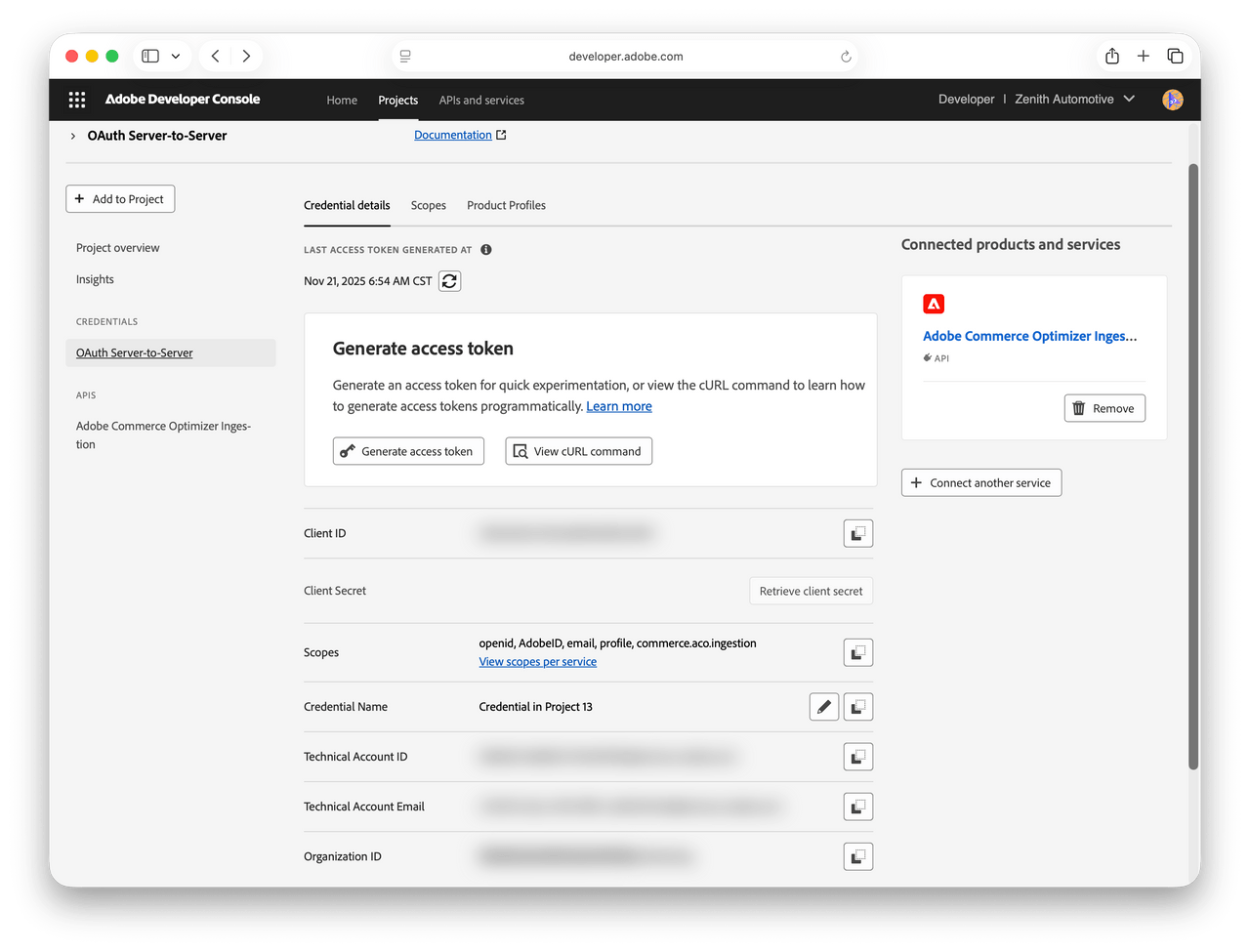
Copy the Client ID and the Client Secret values to a secure location.
You use these values to refresh expired bearer tokens.
Get the bearer access token.
Select Generate Access Token.
Save the bearer token to a secure location.
The bearer token is valid for 24 hours. You can use the same bearer token for all API requests until it expires.

Generate a new access token
To get API authentication credentials and tokens, create an Adobe developer project to enable communication between your Commerce project and Merchandising Services APIs.
Creating projects for enterprise organizations requires a system administrator or developer role with access to the Adobe Commerce – Commerce Cloud Manager product. For information on managing developers from the Admin console, see Managing developers in the Adobe Commerce Optimizer Guide.
Log in to the Adobe Developer Console.
You can also access the Developer Console from the Get Credentials section of the Data Ingestion API Reference. If you use this method, you are automatically directed to the correct organization. You can complete the process to create credentials and generate an access token from there.
Select the Experience Cloud Organization for the integration.
Create an API project.
Add the Adobe Commerce Optimizer Ingestion API to your project. Then, click Next.
Configure the Client ID and Client Secret credentials by selecting the OAUTH Server to Server Authentication option.
Click Save configured API.
In the Connected Credentials section, view API configuration details by selecting OAUTH Server-to-Server.
Copy the Client ID and the Client Secret values to a secure location.
You use these values to refresh expired bearer tokens.
Get the bearer access token.
Select Generate Access Token.
Save the bearer token to a secure location.
The bearer token is valid for 24 hours. You can use the same bearer token for all API requests until it expires.
Headers
Include the following headers in GraphQL requests.
| Header Name | Required | Description |
|---|---|---|
Content-Type | Yes | Specifies the media type of the resource. Accepted value: application/json. |
Authorization: Bearer {{accessToken}} | Yes | Bearer token generated from IMS credentials. |
Request template
Use the following template to submit requests using curl, replacing the placeholders as required.
Copied to your clipboardcurl --request POST \--url https://na1-sandbox.api.commerce.adobe.com/{{tenantId}}/admin/graphql \--header "Content-Type: application/json" \--header "Authorization: Bearer {{accessToken}}" \--data "{{apiPayload}}"
For sample requests, see the tutorial.