Template Tags
This section describes all the template tags that can be used to author a document template. During the Document Generation Process , the Document Generation API replaces the template tags in the document template with the input data to generate the output document.
data-slots=text
Placeholder Variables
A placeholder(text tags) gets replaced by the actual input data.
How to insert Placeholder Variables
data-slots=text
JSON representation of the input data:
{
  "accountName": "Kane Miller",
  "accountNumber": "8324e015-6400",
  "address" : {
    "street": "123 ABC Street",
    "state": "LA",
    "zip": "9XXXX"
  },
  "doctor" : "John Doe"
}
Usage
Placeholder variables get replaced with the actual input data.

Default Value
A default value can be specified for the placeholder variable. In case the specified tag is not present in the input json data, the placeholder gets replaced with the default value.

Optional
Setting placeholder variable as optional will replace the placeholder with an empty string in case the specified variable is not present in the input data.

Prefix
A prefix value can be specified for the placeholder variable. Doing so will append this value before the result of the tag.

Images
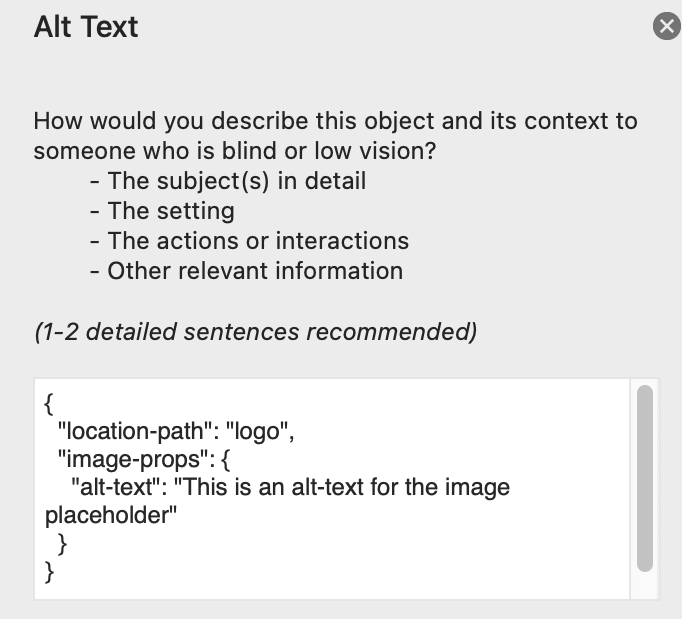
To dynamically insert an image in the document, add any image as placeholder and edit the alt text as per the defined format:
How to insert Images
{
  "location-path": "logo",
  "image-props": {
    "alt-text": "This is an alt-text for the image placeholder"
  }
}
The properties defined in the format specifies the location-path and the alt-text.
The location-path specifies the location of image in the input data.
Alternative text for the image can be provided using the alt-text property as defined in the format.
data-slots=text
JSON representation of the input data:
Image data can be provided either in the form of the base64 encoded string or in the form of publicly accessible URLs.
{
  "logo": "data:image/png;base64,iVBORw0KGgoAAAANSUhEUgAAADIAAAAyCAIAAACRXR/mAAAACXBIWXMAAA7EAAAOxAGVKw4bAAAKM0lEQVRYhZVZa4xdVRX+1j7nvmY6fcy0tOC00FKgECgtFLVNBIVoCJBogj9ImviABBDEP0b9gYb6QzEoCgoqGPlBEwiJkqhVoDQmllIeVQiWVJp2lLSh03ZaaWk7M/fec9bnj/04+5x7Z8CTk8w9++yz17fXWvtbj5GDQ3PmUggAaiAADCAi8Jd9J1BEg+4VoCRgADB6SVLdD6FA/biCboLAzsj9iH2lAgBUSSMphlQRUcDQzRYRK4806L0Ih5WkfQRiQJDwSLeOEwyS6kfs1/YRNBSmdjX7sRFDwLidOKROLV48ABG4UYF4SMqgqn6AxO2iUJJ4JdnNCEAT1Jaqmyl2owZQCAAhRDw+rwrjJFmRHggAmGAg9dYsARKAQrJXSfYTUhiZOPWAKIS1oJMjfkegeMdRkcJiQvstAYkUHOwF8Q5HoZJU9SgrSqIHaLEqkSrtVkBxcyv44gNAbz1EfwBogIJYPcFkwR6oKLWiJH9WTErQehn8oQv4nBS6TcfnMAJdhmLdjwALp0aPyTyg0lvvnUbBlLQrOL1ASoCCMJRdKR53m6CbEc58ST3BZB8GyE5NKcg9zRhlzFj09nPGdWPG+VZwvUgrvbpBcfKFkRVmAmTtmCpIf+JVqkqRgo88iB4DQjNMt9moI62xRzcVNB8KyI3SPRc3QQrcHcGkPckCCsI07bSzoSG9/vps4cL8zBk1ogIVKIQUpahfwX6Vg9Y4pChEPaBgMQoUYgC3UPAVtSfLcgzKiEn7yqJkt6sjI/V778XatUObN2P9Jzk5rbOjgVGIQiiwWqwAskc6zUHCMYcHJhCNTnz5EkcGBNju1G+4Mf/n7sknnqi1mvMfffTouqtSkkYc9RdOEfjW+WU4Ct4RDQIPkIaWfH0IUkBBu93+t39l58uiRd297yRAd/fu5pq1cu6yrNO2ClAYbylvLECdehgUSQpg7G9nEMA4HHYouNSsd2RW55cZwHnzUhEdGdEsD1Ds1q2lcu8AfgWJAdHtxG04pVgFWA1WuGn2yyiQnTkt84dzIF1xPgDtZoCAhAh9mIILVrGxpCCR6GwTAhGSNlSLYgZPmu0igfzQeDL6sRxoXrE2zzIeP840iaEA8DnNbGiCPpSWThl4Az1M3u8qCFZQq3X2/Gvg8svZqDevuqr977HuxNEkTQiXGwYvBvqiCdkAwmGkgwXRiMc+mo7sEkStlo/tb2ne+PwXGsMjx55/QdsdMzAYC6hAqeqm+EEAlmQpLt9ysKQnLY7AhKV8mmo3n2XTf//HWQ/+BMCZl14iLNNCeqKBQkQi4ojRFFt1G081pGof4vESPosXklrtzI4do2ctVvLMyzvgMyKWbeSglHy/Dxp6DKkKlMwxo8/HATHO1t1AltVWrmjMnXvqzTemdr9da7b6aqUEJThcD5rg2yk8Vczu7az+FptfdMkFN39R0hStAbNkSTYxIY0mQnTyvFO4WaHvSGi0ujWrUdKz34w3xZQe4Yg+73Z1YHD4lltIjj/88wV3393Nc6UqmFPV02cU4EEiJ3JCy1u1Lp4JFUZhjMrMccbfeUTBCuQuR2C30x74zDWDK84/+eorE4/9Wk+fmvelL3enpoqAAVEgB9RDKTmADxgZxKKhih2x2vpId061t72omgELv/oVABObNyfA0V88Mnj1pxpXrM0mp1RMTuT2jJezv6CYnB6Nx0CX0EL+NtCa0ye1K/lB30un2snK89e8vVsnp95ctYrHjjHXdOXKs+/73nvf/k4+Pu7dq8gcDIBaHWnq/C0uxF3E8tkpUNVtNDcCIXB1hk+B2tRlt92a1hsHH/9N58iRWr3OPJ/cv+/Qgz8950f3jz/wQDI01Fy6jIMtNpqAyPR0dvjwyVdfy06eqDWbPlrY1Nynpr6skL8ODAz+XyxvUXY6snBk7Z49SbP1+gUXZIcONUaXNi5Z1bzwQhkaGrho1dx16yZefPHU1q3GmCzLRCQdGGhcdtmim24af+K3Rx57PG3U7a5D8Q3AJhSw2pr9qlAoAYF08nz0zjubwyOHt24d2LBhaO0amqQ7Pj61f1973/5D+/Y1Lrpo8R13MEkmtmwRHxmmn302bTYv/eWvpt999/3nnjfNhhdi6Atjm+OnGZhLP14BbFMgLhkB6vR0RjaWnzd6zzfybvf0W2+JSY4++WR7bIxZbgBJ06TVbO/de+D7m86+6675n/vsiW3bTu3c2T52XID66CiA+rnLc0DEwJFaXCiBhLzQag1a568wqudiPy6cnsyIoSuvnPPpa8659bb5l1yy/4c/GLv3uzXApInUaohbAQCzrNvNBi6+ePiGG2pLluSQBatXD29Yf+SF5/fe+bX8xEnYFMhDsY0WBQEjz7Vac2Zy+fCN5t12Z3D16kUbN2ZTU+2JiUsffmjqwMFX11yeTE5KrVZiI3ck3MnTTjtTTVut+rKlZnCoc2xi+sCBJEmkXvPpkYMSu01aqbpiNwIAEZ2e1nr9nG99s3He8qNPP318x8sf37YtSdI993w9++CUtJp+s8Yv6hojLuTU6wZQ1an9Y8xzAEm9LsYU/To7OXS5ABApwXwm3gI4NZ0sXrx8032ndu06+OMHO8CFmzaddd11Y488cuzPf6k3m/RNmyLaMtidoaUDEanVWEtdZdoPSlAVSflTqzXYDxYFzHM0myvuv//wM898sH07gZEbb/zEli0TO1/ede21Sa5I08gjIxB+gBJp0Zo2hlIRFxayuXweZyChqCfyTmfJxo0nXnv9v9u3E5i7fv26P/7h5N533rj5ZrQ7aLVCZiCwTcCSi7juXQVHVI+WoGgJqwnxIY4SNtTbIJ8Mz5cFC5befvvVO3e+v2vXK9de1z18xLQGlDb9tQmFUErlnq2kM19MR3VzdCttmd8zh/L7ZnMQMctH21VlLR29+655GzYMLV/x3lNP/eehn5l2J2m1vBvFFuuTsbGIVW4OCBHk5Ty40uGhQH7XbM5B0furhGdmWdbtpvPmZadPa56naYpababkugIi4BYRjTo/QUoFCoDQkUoJZrEDViQmiUkSnZw0SWJqNdgkxS8qkY+zqG96PNqhK9VCRdKsoYos2sGpzs5b9tMkKQQGGoAQpAj7Ka+PPlDokSpBZNyyCwlFqsQMdaLvmoloX8khT+8ph+zLqIggaOyIEKHfHGaquNzGNhBApDapnVEqChNY8rAwKtGz2mauhg4p9XajPQGAGE+nBZukdmpoZ/V35ngZKainaHV4TRQuUtYHYxw2VvpNVOpvB8sWwTGzxSt6Xy0pJhJf6oyHnQUXcfKkhANRdx6eSIvPBSTSDKKEImoMRBpTP7WkuKL1TYr7LjiH73sXTl6hJXi/iHDYA2TCNPevKPYwlsPnPLqQHRYFjH2OaGEGEBV9BCg0/iAXlGM9OFUKJQR/Ot0Qft/uPzuR7EJ7vQhiED36QMAhKLFfRYshsQksXzDbLIL7IvClUXwaADUUm+lELFI+NPZ1DIDk/wAgP2EeAXgCoAAAAABJRU5ErkJggg=="
}
OR
{
  "logo": "https://documentcloud.adobe.com/dc-docgen-app/assets/dc_icon.png"
}
data-slots=text
Add the image placeholder.

Add the alt text to the image as per the specified format.
The image placeholder will be replaced by the image data in the output document.

data-slots=text
<img/> tag. Please refer Inline Images to learn more about this.Conditionals
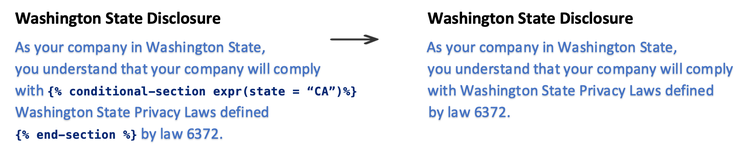
Show or hide content in the document based on the conditions.
How to insert Conditional Tags
data-slots=text
JSON representation of the input data:
{
  "state": "CA"
}
Conditional Sections
Show or hide paragraphs based on conditions.

Conditional Phrases
Show or hide text inside a paragraph based on conditions.
Tables
Insert Table using <table> HTML Element
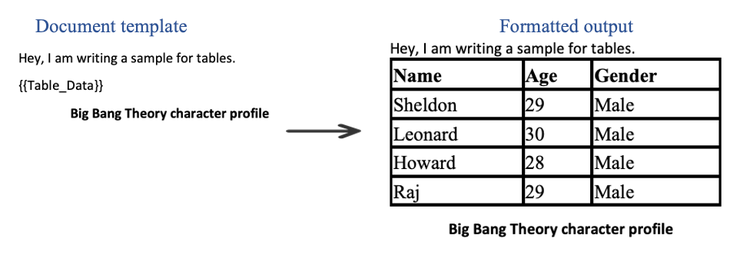
Add tables in the document through json data using <table> tag.
JSON representation of the input data:
{
  "Table_Data": "<table border='1' cellpadding='0' cellspacing='0' style='width:30%'><tr><th>Name</th><th>Age</th><th>Gender</th></tr><tr><td>Sheldon</td><td>29</td><td>Male</td></tr><tr><td>Leonard</td><td>30</td><td>Male</td></tr><tr><td>Howard</td><td>28</td><td>Male</td></tr><tr><td>Raj</td><td>29</td><td>Male</td></tr></table>"
}
Usage
Placeholder tag is replaced by a table generated using the html string provided in the input json.
data-slots=text
-
Placeholder Tags containing
<table>HTML element as value in input json data, should be placed in a separate paragraph in the input document template. -
Only Inline Styling of Table elements is possible. i.e. using
styleattribute of<table>. Internal and External styling are not allowed.
Insert Table using Placeholder Table Tag
Rows of a table can be dynamically populated by repeating over an array of objects from the input data.
How to insert Tables
data-slots=text
JSON representation of the input data:
{
  "subscriptions": [
    {
      "name": "Adobe Document API",
      "price": "99",
      "quantity": "1",
      "amount": "99"
    },
    {
      "name": "Adobe Marketing API",
      "price": "199",
      "quantity": "2",
      "amount": "398"
    }
  ]
}
Usage
Create a table with requisite column headers. Add a row to the table and place the template tags referring to the properties of the objects in the array inside the row under the required column headings.
The template tag should indicate the name of the array followed by the property name of the objects in the array. {{subscriptions.name}} illustrates one such template tag where subscriptions refer to the array of objects while name refers to the property of one such object in the array.

Table rows are dynamically populated in the output document by repeating over the specified array of objects.

data-slots=text
Lists
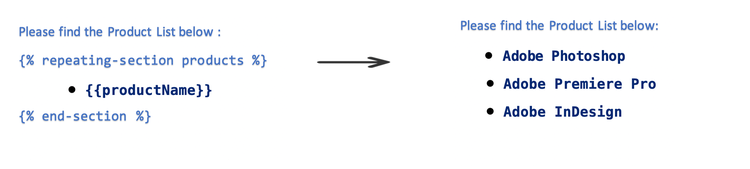
Dynamically generate numbered or bullet lists by repeating over a list.
How to insert Lists
JSON representation of the input data:
{
  "products": [
    {
      "productName": "Adobe Photoshop"
    },
    {
      "productName": "Adobe Premiere Pro"
    },
    {
      "productName": "Adobe InDesign"
    }
  ]
}
Numbered Lists
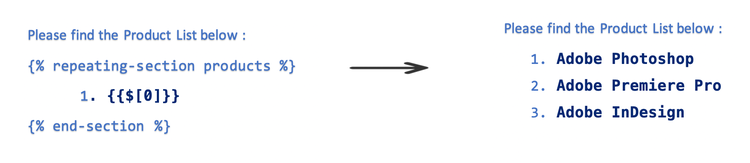
Dynamically generate a numbered list by placing it inside a repeating section.

Bullet Lists
Dynamically generate a bullet list by placing it inside a repeating section.
Simple Lists
JSON representation of the input data in case of simple lists:
{
  "products": ["Adobe Photoshop", "Adobe Premiere Pro", "Adobe InDesign"]
}
Dynamically generate a numbered or bullet list by placing it inside a repeating section.
Numerical Calculations
Performing numerical calculations on the input data.
How to insert Numerical Calculations
All calculations supported are JSONata compliant.
data-slots=text
JSON representation of the input data:
{
  "revenue": "1000",
  "expenditure": "650",
  "subscriptions": [
    {
      "description": "Adobe Photoshop",
      "licenses": "1"
    },
    {
      "description": "Adobe Premiere Pro",
      "licenses": "2"
    },
    {
      "description": "Adobe InDesign",
      "licenses": "1"
    }
  ]
}
Arithmetic
Performs simple arithmetic operations.

data-slots=text
Aggregation
Performs aggregations on a list of elements.

data-slots=text
Adobe Sign
Adobe Sign text tags can be placed anywhere within the contents of the document template.
These tags are converted into Adobe Sign form fields when the final document is sent for a signature using Adobe Sign.
data-slots=text